

Last Updated on November 5, 2026 by Matte Akerson
Peacock is NBCUniversal's streaming service, and it is built for the United States. The app sits in the Amazon Appstore for US accounts, and Peacock's own help page says your device must physically be located in the US to stream. That leaves two separate walls to clear: getting the app onto the Firestick, and giving it a US address the moment it starts. This guide walks both, then shows how NordVPN handles the second wall in about two minutes.
Table of Contents
Peacock on Firestick [Short Steps]
Quick Steps
- Get NordVPN and install it from the Fire TV Appstore.
- Connect to a US server and wait until the app confirms the tunnel is live.
- Install Peacock from the Amazon Appstore if your Amazon account is set to the US, or sideload the official build with Downloader if it is not.
- Sign in with a Peacock account that carries a US ZIP code and a payment method that accepts US billing.
- Open a live channel or a movie, confirm playback, and keep that US server for the next session.
Keep the tunnel connected through sign-in and the first stream. Peacock checks location when playback starts, so a disconnect in the middle of setup drops you straight back into the region error. The whole route takes about ten minutes on a modern Firestick and a little longer on an older 4K model that needs a reboot.
What Is Peacock and Why Is It US-Only?
Peacock is NBCUniversal's ad-supported and subscription streaming service, launched in July 2020. The library pulls from NBC, Bravo, USA Network and the wider Universal catalogue, and it adds live sports such as Premier League matches, WWE events and Sunday Night Football. Peacock Originals, next-day NBC shows, news channels and a deep film shelf fill out the rest.
Rights are sold country by country, so the catalogue is licensed for the United States rather than for the world. Peacock's official help page is blunt about it: your device must physically be located in the US to stream. The service also covers US territories such as Puerto Rico, Guam and the US Virgin Islands. In parts of Europe, Peacock content reaches viewers through Sky and NOW, which is one reason the standalone app is not sold there.
What You Need Before You Start
- A Fire TV Stick, Fire TV Cube or Fire TV Edition television. AFTVnews reports that the first-generation Fire TV and first-generation Fire Stick are not compatible with the Peacock app.
- An Amazon account. The Appstore listing only appears when that account's country is set to the United States.
- The free Downloader app, but only if you plan to sideload the build instead of using the Appstore.
- A Peacock account with a US ZIP code and a payment method that accepts US billing.
- NordVPN installed on the Firestick and connected to a US server before Peacock opens.
How to Install Peacock on Firestick From the Amazon Appstore
The clean route works when your Amazon account is set to the United States. Peacock arrived in the Amazon Appstore on June 24, 2021, so every current Fire TV model can install it without a sideload.
- From the Fire TV home screen, open Find and select Search.
- Type Peacock TV or hold the voice button and say “Peacock”.
- Pick the Peacock app in the Apps and Games row.
- Select Get or Download, then wait for the install to finish.
- Select Open and leave the app on the sign-in screen until your VPN is connected.
If the listing never appears, the problem is not the Firestick. It is the country on your Amazon account, and the next section covers both fixes.
How to Install Peacock on Firestick When the App Is Missing
Outside the US, Amazon hides the Peacock listing because the service is not licensed for that market. You have two honest options: switch the Amazon account country to the United States, or sideload the app with Downloader. The account switch is cleaner and keeps future updates automatic.
Option 1 – Change Your Amazon Account Country
- Sign in to Amazon in a browser and open Accounts and Lists.
- Go to Your devices and content, then Preferences.
- Open Country/Region Settings and change the country to the United States.
- Add a US address and contact details, then save the change.
- Restart the Firestick and search the Appstore again.
The switch makes the app visible, but it does not change your network location. You still need a US IP address to play anything, which is why NordVPN belongs in the setup before the first launch.
Option 2 – Sideload With Downloader
- Install Downloader by AFTVnews from the Amazon Appstore.
- Open Settings, then My Fire TV, then Developer Options.
- Turn on Apps from Unknown Sources and accept the warning.
- Launch Downloader and enter the official Peacock download address, not a random mirror.
- Install the file, open the app, then delete the leftover APK to free space.
Watch the source. APK mirrors age fast and some carry modified builds. Prefer Peacock's own download page or a long-standing Android TV source, and never install a file that asks for extra permissions. Sideloading changes which app you run, not which country you appear to be in.
How to Sign In and Set Up Your Peacock Account
Peacock asks for an email address, a password, a US ZIP code and a payment method during sign-up. A card that only bills in another currency can fail the check, so use one that accepts US billing or a payment route Peacock already supports. If you are an Xfinity subscriber, check your account first, because Peacock Premium has been bundled with some Xfinity packages.
The plan lineup has changed more than once, so confirm the current tiers on peacocktv.com before you commit. There is an ad-supported entry point and an ad-free upgrade, and the sports and next-day NBC content sit behind the paid tiers. Sign in while NordVPN is connected to a US server, then open one live channel to confirm both checks pass.
Why You Need NordVPN on Your Firestick
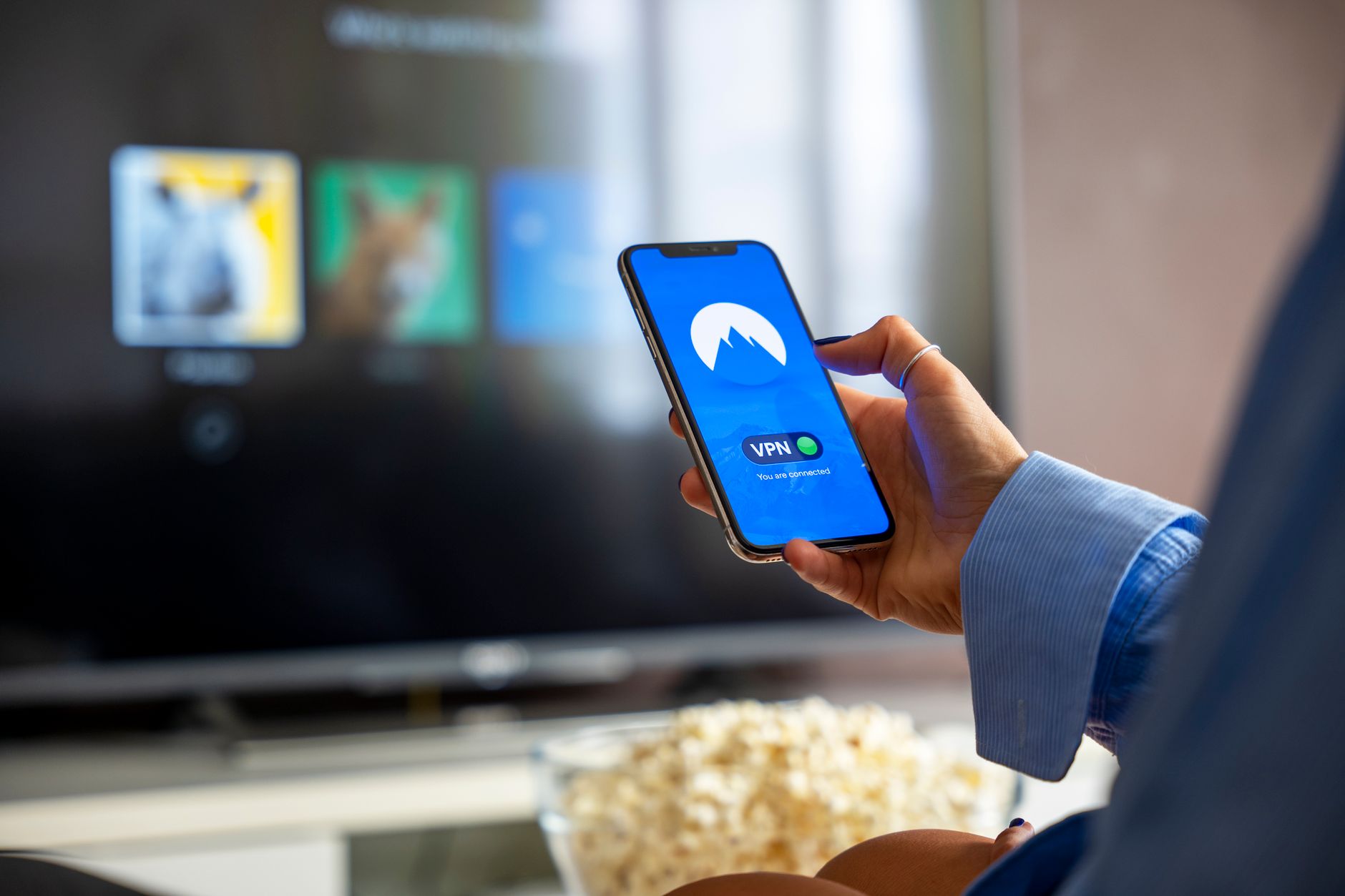
The Appstore listing is only the first wall. Peacock reads your IP address at playback, so a Firestick in London or Sydney still gets the region error even with the app installed. A VPN puts your traffic through an encrypted tunnel and hands you the IP address of the exit server. Connect to the United States and Peacock reads the session as local.
NordVPN has a native Fire TV app in the Amazon Appstore, which keeps the whole route on the stick. It also runs obfuscated servers for networks that block VPN traffic, and NordLynx keeps enough speed for 1080p and 4K streams. Install it, pick a US city, and turn on auto-connect so the tunnel is up at every boot.
- Search the Fire TV Appstore for NordVPN and install it.
- Sign in with your NordVPN account and allow the connection request.
- Open the server list, choose the United States, and pick a city close to your real location for better speed.
- Enable Auto-connect and, if your network blocks VPNs, switch on obfuscated servers.
- Launch Peacock and start a stream to confirm the US exit works.
Peacock Not Working on Firestick? Fixes That Work
Most failures on Firestick come down to one of five causes, and each has a first action that takes under a minute. Work down the table before you reinstall anything.
| Problem | Cause | Fix |
|---|---|---|
| App missing from the Appstore | Amazon account country is not the US | Change the account country or sideload with Downloader |
| “Sorry, Peacock is not yet supported in your region” | The IP address is outside the US | Connect NordVPN to a US server, force stop Peacock, reopen it |
| App opens but playback fails | Stale cache or DNS entry | Clear the app cache, restart the Firestick, retry |
| Buffering on live sports | Distant or crowded server | Switch to another US city and use the 5 GHz Wi-Fi band |
| Sign-in rejected | ZIP code or card does not match US billing | Use a US ZIP and a card that accepts USD, then retry |
If the region error returns after a server change, clear the Peacock cache from Settings, then Applications, then Manage Installed Applications. Restart the stick, reconnect the VPN, and open the app again. That sequence fixes most stale-location errors without a reinstall.
Frequently Asked Questions
Is Peacock free on Firestick?
Peacock has changed its plan lineup several times, so check the current tiers on peacocktv.com. There is an ad-supported entry plan and an ad-free upgrade, and some live sports sit behind the paid tiers.
Does Peacock work on a Firestick in the UK?
The app is not sold in the UK Appstore, because Peacock content reaches that market through Sky and NOW. A US Amazon account plus a US VPN server is the route readers use to install and play the standalone app.
Which Firestick models support Peacock?
Current Fire TV Stick, Fire TV Stick 4K, 4K Max, Fire TV Cube and Fire TV Edition televisions all work. The first-generation Fire TV and first-generation Fire Stick are reported as incompatible, so try the app there only as a last resort.
Do I need a US Amazon account to install Peacock?
For the Appstore method, yes. If you would rather not change the account country, Downloader can sideload the app, but the streaming location check still needs a US IP address.
Is using a VPN with Peacock legal?
VPN use is legal in most countries, but bypassing a geo-block can breach the service's Terms of Service. Check your local laws and the service's Terms of Service before you proceed.
Final Thoughts
Peacock on Firestick is a two-step job: get the app through a US Amazon account or Downloader, then give it a US address with NordVPN before the first stream. Connect to a nearby US city, sign in with a US ZIP and a compatible card, and confirm one live channel plays before you settle in. Keep auto-connect on, and switch US cities whenever the region error comes back.
Related posts:
 Install Plex on Firestick: Free Movies and Live TV in 2026
 How to Install Jellyfin on Firestick in 2026 (Easy Setup Guide)
 How to Install Downloader on Firestick in 2026: Step-by-Step Guide
 How to Install HDO Box on Firestick in 2026
 Best Movie Apps for Firestick in 2026
 How to Install TiviMate on Firestick in 2026: IPTV Setup Guide
 How to Install IPTV Smarters Pro on Firestick in 2026: Free Player Setup
 Do You Need a VPN for Firestick in 2026? The Honest Answer